Editing of table
Teide provides simple and effective way of teble editing.
Simultaneously you can edit several tables in separate windows: open the tables via double click in left panel (window) for parallel editing.
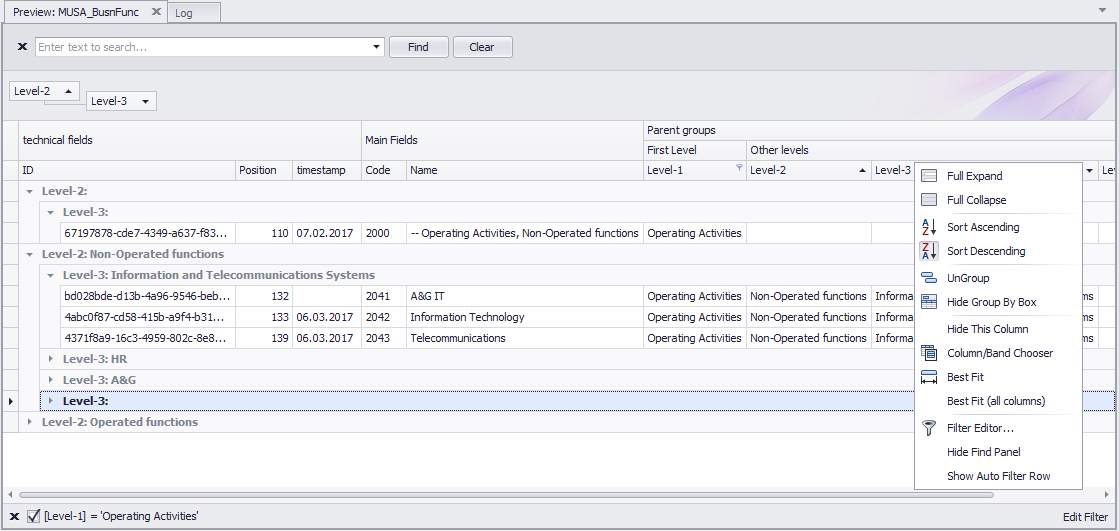
You can use typical functionality of data editing. The following functionality is available:
- Hiding and showing columns, and moving columns
Hiding of column: Click right mouse button to header of column, and select "Hide This Column" to hide column.
Showing of column: Click right mouse button to header of table (any column), select "Column/Band Chooser". In showed Customization window, in Columns tab click right button on hiden column, and select "Show This Column".
Movement of column: Drag necessary column and drop to new place in table header
- Grouping, ungrouping of fields
Grouping of column (field): Drag necessary field and drop to special area in the top of window, above header of table
Ungrouping of column (field): Drag necessary field in grouping area, and drop to header
- Filtering of data
Filtering of data allows to make simple and more comprehensive ways of filtering.
Simple way: click right button on header of any column, select "Show auto filter row". After that additional row above the header for filtering data will appear. Enter necessary value in the row, the table will be filtered by entered value.
Comprehensive filtering: click right button on header of any column, select "Filter editor...", construct filter condition.
- Find data
Press Ctrl-F in any cell of table, enter text to search in appeared field, press Find
- Ordering (Sorting)
The system allows make ordering (sorting) by one or several fields. To make ordering of primary (first field) click left button header of necessary column. The table will be sorted by this field from smallest to largest value (ascending ordering). If you click header of the same column again, the table will be sorted by this field from largest to smallest value (descending ordering).
To add additional levels of sorting, click right button headers of the next fields in necessary sequence, and select "Sort Ascending" or "Sort Descending".
Clearing of sorting: click right button header of any column, select "Clear Sorting".
The following operations are ran via functions in Toolbar.

- Add new row (PK fields, non-null allowed fields, multiple rows add)
Press Add Row in Toolbar (Table Edit tab), or press Ctrl-I, to create new row. If you want to create several rows, click the down arrow to the right of "Add row" button. Then in appeared dropped down menu enter necessary number of added rows, and click "Add rows" menu item.
The adding of new rows in tables of database is not ordinary operation because standardly databases have several limitations to adding of new rows. At the moment of adding new row, some fields should be filled.
* Fields that included into Primary Key should be filled, and have unique value in entire table
* Fields that have not null property should be filled by some value
When you add new row to the table, Teide does the following operations:
* for not null fields and/or fields from Primary Key, uniqueidentifier type: fill the field by new GUID
* for not null field; int, numeric, decimal types: fill the field by zero
* for not null field; char, nchar, varchar, nvarchar, text, ntext types: fill the field by empty string
* for field from Primary Key; int, numeric, decimal types: fill the field by unique value, by incrementing (add 1) to maximum value in the table
* for field from Primary Key; char, nchar, varchar, nvarchar, text, ntext types: fill the field by unique value, by incrementing (add 1 to last symbol code) to maximum value in the table
- Insert new row
The process of inserting a new row is the same as the process of adding a new line. The difference is related to ordering field. If the table includes _pos field, all valued below current row are increased by 1 or by number of inserted rows. Released position numbers are assigned to the inserted rows.
- Set GUID value
The function generate and fill fields by newly generated GUID value
- Set Null value
The function set null value to selected cell
- Copy rows
Copying of rows is based on adding a new line, then fields are filled by values from source rows, except the fields from Primary Key: they are not copied to support their uniqueness.
- Changing of row position (order), set counter value
These procedures are applicable to tables that include _pos field only.