Operations with XML
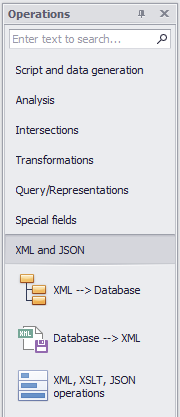
View of XML, data exchange between XML and Database
This section describes powerful mechanism how to integrate XML and database in the meaning of quick one-time data import from XML to database, and regular data exchange between XML and database.
The advantage of this functionality is you can do exchange without any coding, programming and complex configuration of the system.
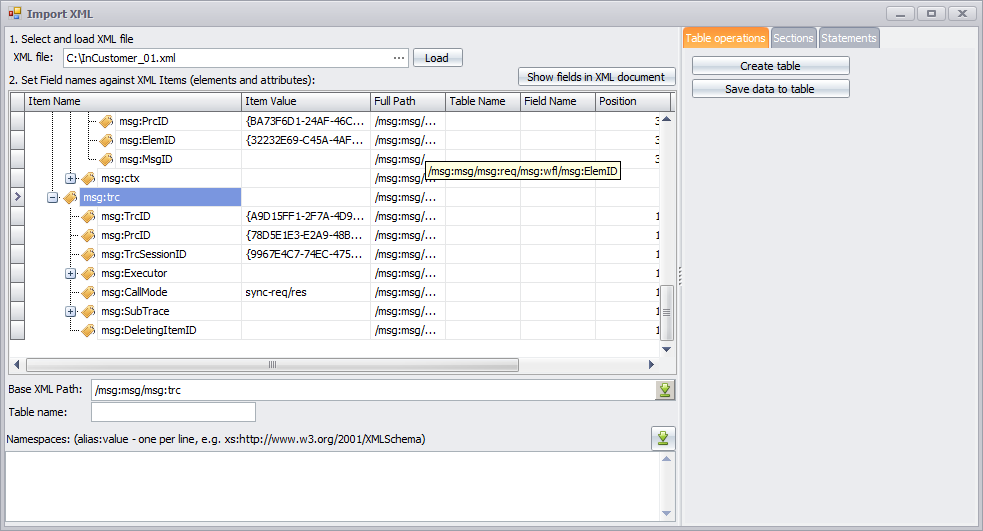
View XML file
Select file in "XML file" field. Click Load button.
XML file will be loaded into tree grid. You will be able to navigate the file. All tags and attributes are represented as branches and leaves.
The following columns are in the tree grid:
* Item Name - name of tag or attribute
* Item Value - value of tag or attribute
* Full path - XPath to this tag or attribute
* Table Name - editable column, here you can specify table name where you want to save value from XML
* Field Name - editable column, here you can specify field in database table where you want to save value from XML
* Position - sequence of tags and attributes in XML file. This is pass-though counter. Position is used as ordering field to comply the same ordering, as it is in XML file.
Often some tags are repeated in XML file. For example, XML file includes list of documents with a set of standard fields (tags). It is useful to see some fields of XML file in table, against repeatable tag (e.g. Document).
This is possible in Teide: 1) specify path to repeatable tags in "Base XML Path" field.
2) specify names in Field Name column for tags or attributes that should be reflected in separate column
3) Click "Show fields in XML document" button
Quick saving of XML data to table
This chapter describes how to save repeatable values from XML file to table in database one time.
1) Load XML file
2) Specify path to repeatable tags in "Base XML Path" field.
3) Specify table name in "Table name" field.
If the table is not created (does not exists), you can create it: click "Create table" button in right part of window, Table operations tab. The system will create table with the following fields:
_id uniqueidentifier - primary key
_pos int
<specified fields> nvarchar(200)
4) Click "Save data to table" button in right part of window. Data will be saved to the table.
Use of sections for importing/exporting XML
Sections are configuration data that allows to import and export data from or to XML.
Sections includes description of table, repeatable XML path that will be matched to rows of database table, mapping of XML tags and database fields.
Import and export XML with use of sections
1) Select XML file
2) Select Section name
3) Click "Import from XML" button for data importing, and "Export to XML" button for data exporting
Making of statements from XML
Some external integration software can run scenarios related to data exchange between database table and XML. In particular, insert of data to databased based on path to XML tag.
Make Insert statement with XPath
1) Load XML file
2) Specify Table name in "Table name" field
3) Specify field names against tags of XML file
4) Click "Make Insert statement with XPath"
Result will be as statement:
insert into <table> (field name 1, field name 2, ..., field name n) values (XPath 1, XPath 2, ..., XPath n)
Make Select statement
1) Load XML file
2) Specify Table name in "Table name" field
3) Specify field names against tags of XML file
4) Click "Make Select statement"
Result will be as statement:
select field name 1, field name 2, ..., field name n from <table>
Make XSLT tags
1) Load XML file
2) Specify Table name in "Table name" field
3) Specify field names against tags of XML file
4) Click "Make XSLT tags"
Result will be formed as a statement:
<xsl:element name="field name 1"><xsl:value-of select="XML tag 1" /></xsl:element>
Operations with XML and XLST
Teide provides functionality that helps operating with XML, including:
* Viewing of XML in structure of tags
* Testing of XML transformation (XSLT)
* Prepare and test XPath
* Convert XML to JSON and JSON to XML
Viewing of XML
Click "XML, XSLT, JSON operations" button in Operations list, "XML and JSON" group.
In left window (Soruce XML file - structure) select XML file, and click "Load" button.
After that you will see structure of XML document in top tree grid, and source XML document in text in bottom text field.
Depending on selected options of showing text document, you will see different text in bottom field:
* Position in Document: when you select some tag in structure of top tree grid, cursor will be positioned to position in bottom text field, where tag begins.
* Inner text: text from XML document inside of tag will be showed
* Outer text: text from XML document with selected tag will be showed
Testing of XML transformation
Testing of XML transformation allows quickly test XSLT-files, and see results of transformation.
1. Load source XML file in Source XML file window;
2. Load XSLT file in XSLT file window;
3. Select "Destination XML file - structure" tab in right window; Click Transform button. After that source XML file will be transformed with use of XSLT file, and will be shown.
If you want to have saved transformed file, select XML file in Destination XML file window, and click "Transform and Save" button.
Making and testing of XPath
This functionality allows creating XPath based on loaded XML file, and test XPath on loaded XML file.
To create XPath based on XML:
1. Load XML file in Source XML file window;
2. Select XPath tab in right window
3. Select necessary tag in Source XML file window
4. Click "Take XPath" button
XPath will be generated in bottom text field.
XPath can be generated in three options: 1) Standard XPath, 2) No namespaces: local-name() will be used, and 3) Name + Namespace: local-name() and namespace-uri() will be used.
To test XPath on XML:
1. Load XML file in Source XML file window;
2. Select XPath tab in right window;
3. Enter XPath to top text field (XPath);
4. Click "Test XPath" button.
After that in bottom text window tags that met to specified XPath. In case of error in XPath, you will see error message.
Convert XML to JSON and back
This functionality allows transform XML to JSON format and back.
To transform XML to JSON:
1. Load XML file in Source XML file window;
2. Select JSON tab in right window
3. Click "Convert XML to JSON" button
JSON code will appear in top text window.
To transform JSON to XML:
1. Select JSON tab in right window
2. Enter or paste JSON to top window
3. Click "Convert JSON to XML (Source XML)
Transformed XML code will apprear in Source XML window.