Relations in Teide
Relations in Teide
Select table in left window, or in editing window. After that in right window select "Related tables" tab. You will see list of related tables. All tables are broken down into three categories. As an example, we have three tables that describe transport company:
1) Departments (DepartmentCode, Name, City)
2) Employees of departments (EmployeeCode, Name, DepartmentCode)
3) Cars (CarNumber, Description, DepartmentCode)
Categories of relations:
* Children tables: Employees of departments and Cars for Department (who work and what cars are in dept)
* Parent tables: Department for Employees of departments (Property of Dept where Employees work)
* Neighbor tables: Cars for Employees of Departments (Cars that can be driven by employees)
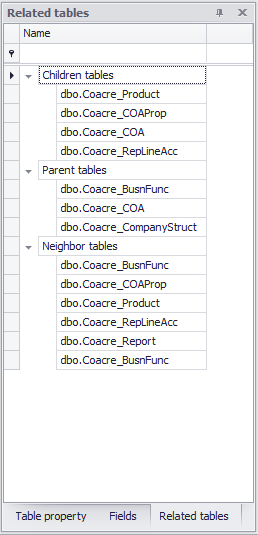
Above example shows that every relation can be described in natural language. Moreover, every relation is directed from one table to another, and it seems like navigation from one table to another with specific meaning of the navigation.
Relations in Teide are not constraints (as it is defined in database). Relations in Teide helps to specify well-established standard relations, for quick navigation and analysis. At the same time Teide read constraints from database as relations.

The following functions are available for operations with relations:
- Add new relation. Toolbar, Relations tab, "Add relation" button. After press the button, window to describe new relation will open. Specify all details related to relation, including:
* Database and name of Master table (source table)
* Database and name of Detail table (destination table)
* Relation type
* If the relation is Constraint, and its name
* Description of relation
* Related fields in both tables
- Edit relation. Double click relation in Related table window. Or select relation in Related table window, and click "Edit relation" button (Toolbar, Relation tab)
- Delete relation. Select relation in Related table window, and click "Delete relation" button (Toolbar, Relation tab)
Relational analysis in Teide
- View Nested table with the same values
Often it takes to check if some other records have the similar values. Open table in editing mode, select necessary fields, and press "The same values in nesting" button (Toolbar, "Table edit" tab). The same table in nesting mode will be opened in relation to current table. In the left part of the table you will see + and -, to expand and collapse nested records with the same values as in current table in selected fields.
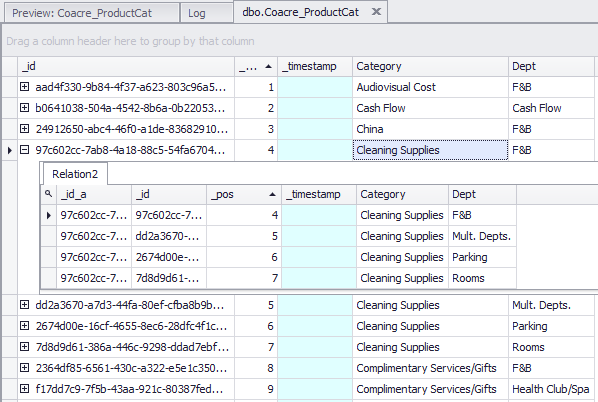
- Open related table in nesting mode
Select table in Tables window or select editing table, select relation in "Related tables" window, and press "Open related table in nesting" button (Toolbar, Relations tab).
Related table will be opened as nested table. In the left part of the table you will see + and -, to expand and collapse nested records related to record in current original table.
- Join and Match operation
In left window (Operations) select Intersections group, click Join button.
Or select table in Tables window or select editing table, select relation in "Related tables" window, and press "Open as joined tables" button (Toolbar, Relations tab).
New window will appear where you can specify significant number of parameters:
* Operation tab:
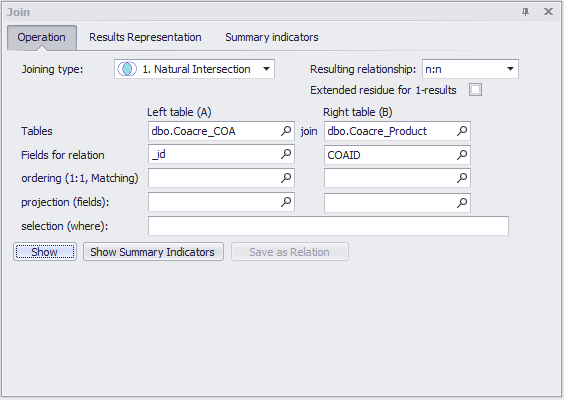
If you open the window via "Open as joined tables" button, most of fields on this tab will be filled automatically from Relation description.
Joining type: select one option of result type of the relation: Natural Intersection (inner intersection), Left Intersection (Left outer intersection), Right Intersection (Right outer intersection), Full Intersection (Full outer intersection), Left Residue, Right Residue, Full Residue.
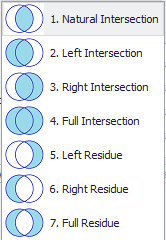
Please see chapter of Introduction in Relational Analysis for additional details.
Resulting Relationship: n:n, 1:n, n:1, 1:1 (Matching).
n:n means that results of relation will not be contolled and limited.
1:n means that records of left table will be included to the results of relation only 1 times for Left and Full Intersection; or one or zero times if you select Natural Intersection or Right Intersection.
n:1 means that records of right table will be included to the results of relation only 1 times for Right and Full Intersection; or one or zero times if you select Natural Intersection or Left Intersection.
1:1 turns Intersection operation from Join mode to Matching mode. This means that records from both left and right tables will appear for one time only (or zero if you select Nartural Intersection). In practice, it means that records from right table will be matched to values from left table.
Extended residue for 1-results: this checkbox means that unmatched values will be shown in residue. This options meant for 1:1 resulting relationships.Tables: name of left and right tables
Fields for relation: list of fields in left and in rigth tables. Fields should be separated by comma. For example, if fields for relation of left table is "field1a, field2a, field3a", fields for relation of rigth table is "field1b, field2b, field3b", relation term will be "field1a=field1b and field2a=field2b and field3a=field3b".
Ordering: fields of left table and right table. These fields are necessary for resulting relationships 1:n, n:1 and 1:1 (matching) in the table(s) where 1 relation is set.
In results of relational databases queries the ordering of rows is undefined. As a result, if the ordering is not defined in the fields, it is not possible to know what records is selected for relation result.
Projection: list of field in left table and right table that will be included into the result of joining.
Selection: expression for filtering data in the tables.
* Result Representation tab:
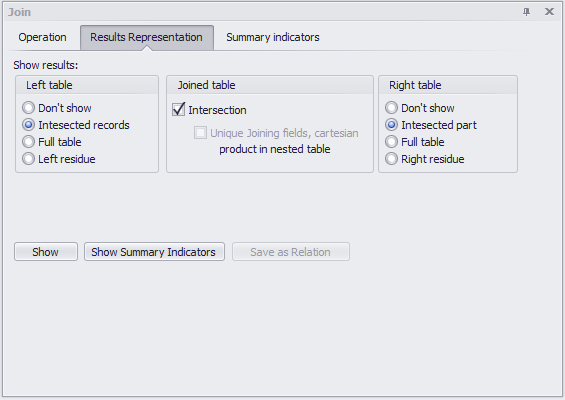
After run of joining operation, results will be represented in three windows. This tab describe how the results are represented.
Left table and Right table:
- Don't show: left or right window will not be shown
- Intersected records: only records from the table that included into intersection operation will be shown. Records that were not included into the result of joining will not be appear. This option make sense for Natural (inned) intersection. If you select this option for left table, and joining type is left intersection, full table will be shown.
- Full table: full table will be shown- Left or right residue: residue of joining operation will be shown
Joined table:
- Intersection: if check box is switched off, result of intersection will not be shown.
* Summary Indicators tab:
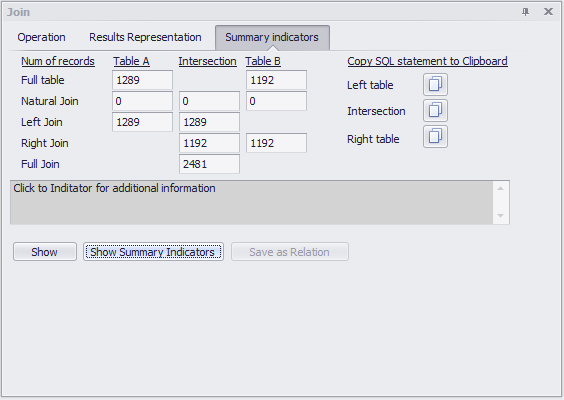
If you press "Show Summary Indicators", this tab will be shown.
There is 10 of metrics (see Metrics of Relational operations chapter). They grouped by left or right table, and joining type. Click the field with indicator, and you will get description of the indicator in text field under the indicators.
Above joining types, resulting relationships, result representations and other optins makes significant number of variances in relational analysis of data. Some of combinations of the options makes quite complex SQL expressings. We (authors) do not want to make secrets how to achieve the result. On contrary, one of goals of Teide is to make open SQL expressions.
You can click button "Left table", "Intersection" and "Right table" under "Copy SQL statement to clipboard", and then current SQL statement that is used to show left table, intersection table and right table will be copied to Clipboard.